How to Read Your Payslip
Workday provides you with a central location for accessing your payslips. This page gives an overview of a typical payslip. Use the menu below to navigate to information about different payslip sections.
- Company Information
- Payslip Information
- Current and YTD Totals
- Earnings
- Employee Taxes
- Pre Tax Deductions
- Post Tax Deductions
- Taxable Wages
- Withholding
- Absence Plans
- Payment Information
- Employer Paid Benefits
- More Information on Description/Pay Component
- More Information on Rate
- More Information on Retroactive Pay Calculations
Last updated Friday, March 31, 2023
Note: Your payslip may differ from the examples below depending on your earnings, deductions, paid time balance and other factors.
1. Company Information
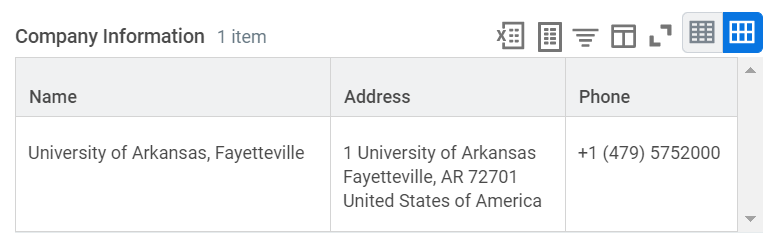
This identifies the University of Arkansas as your employer.
2. Payslip Information
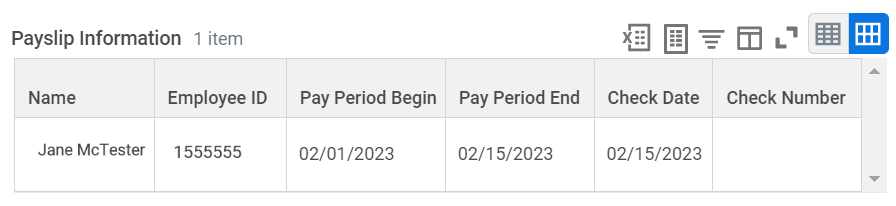
This is a summary section which includes your name, Employee ID, the pay period begin and end dates, check date and check number (if you receive a paper check). If you receive direct deposit, the check number section will be blank and the payment information will be toward the bottom of the payslip.
3. Current and YTD Totals
This section details Gross Pay, Pre Tax Deductions, Employee Taxes, Post Tax Deductions and Net Pay for the current pay period and Year to Date (YTD).
Gross Pay is what employees earn before taxes, benefits or other payroll deductions are withheld from their wages.
Pre Tax Deduction is any amount subtracted from an employee’s gross pay before taxes are calculated and withheld from the earnings.
Employee Taxes also known as payroll taxes are the taxes employees and employers pay on wages, tips and salaries. These taxes include federal, state, and local taxes, as well as FICA taxes, which are taxes for Social Security and Medicare.
Post Tax Deduction is a deduction from an employee’s pay after all required taxes have been withheld.
Net Pay is also known as take home pay or the amount employees earn after all payroll deductions are subtracted from the gross pay.

4. Earnings
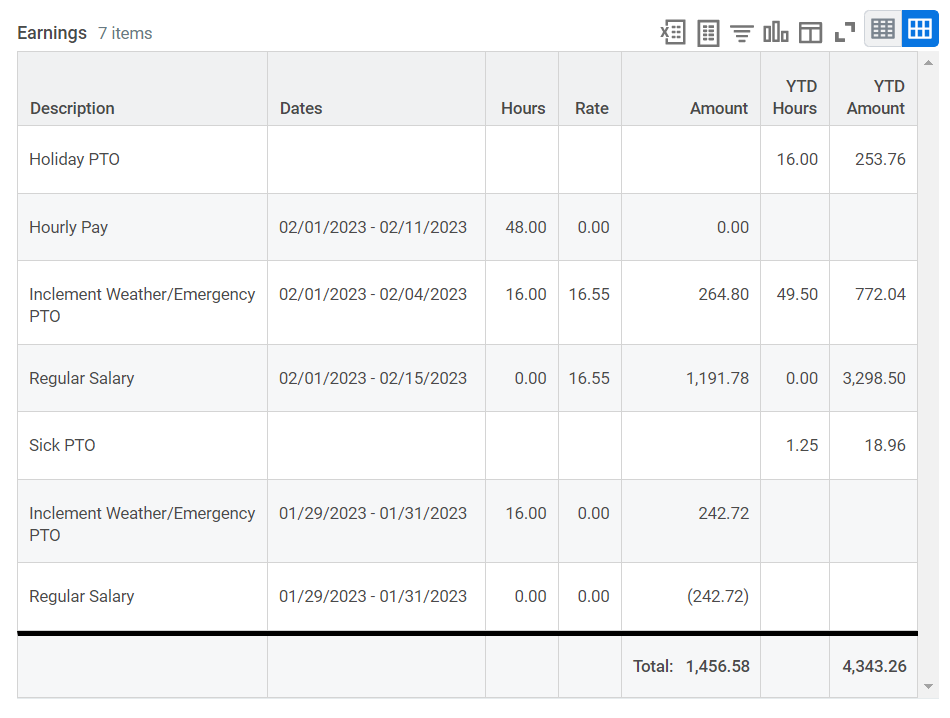
The earnings section details every type of earning you have received during this pay period and your YTD totals.
Viewing tip: If viewing in Workday, use the scroll bars on the side and at the bottom of the section to scroll through the list if you have a large number of earning types for the pay period. If viewing in PDF or on paper, this section may be abbreviated for printability but fully continued on later pages.
- Description/Pay Component: Details the specific earning type for the pay period and any earning codes recalculated from previous pay periods.
- Dates: Shows the dates the earning code is being calculated for. Dates corresponding to earnings for the current pay period are listed here; dates from previous pay periods will show here if you have retroactive payment calculations.
- Hours/Units Value: Displays the number of hours for the earning code within the dates specified. Any retro pay calculations will also include the number of hours that were recalculated.
- Rate: Displays the rate of pay for the earning types for the dates worked. The rate is determined according to your position and compensation details. Note: Salaried workers rate of pay displays the current pay period rate of pay. The current pay period rate of pay is determined by the compensation amount divided by the number of working days/hours in the pay period. (Further details covered in the More on Rate section.)
- Amount: The total amount earned for this earning type during the dates specified in the Dates column.
- YTD Hours: The Year to Date total hours for each applicable earning code.
- YTD Amount: The Year to Date total amount for each applicable earning code.
5. Employee Taxes
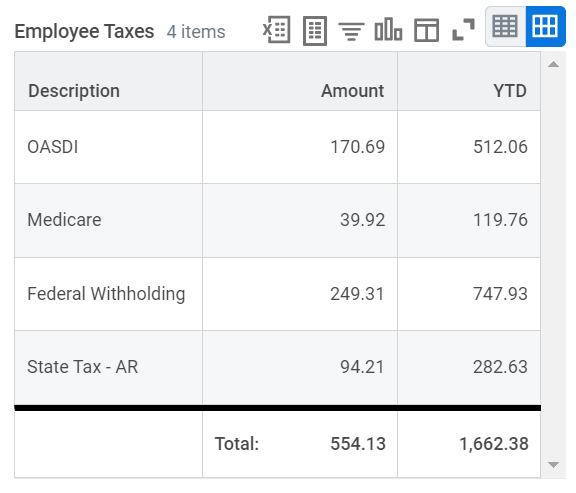
This section details how much was withheld from your paycheck for employment taxes. The following Tax Types may be listed:
- Federal Withholding
- OASDI (Social Security)
- Medicare
- Additional Medicare Tax
- State Tax (applicable work state)
- Other State and Local Taxes (based on work location in Workday)
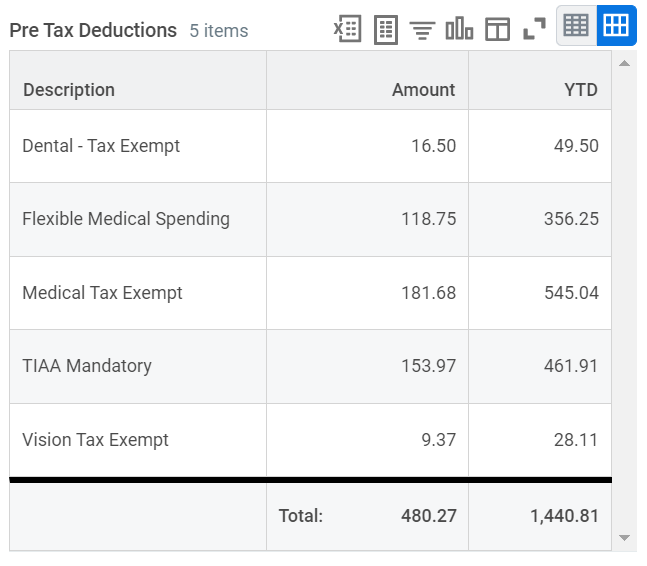
6. Pre Tax Deductions
This section details your pre tax deductions. Pre tax reductions are deducted from employee’s wages before the applicable taxes are calculated.
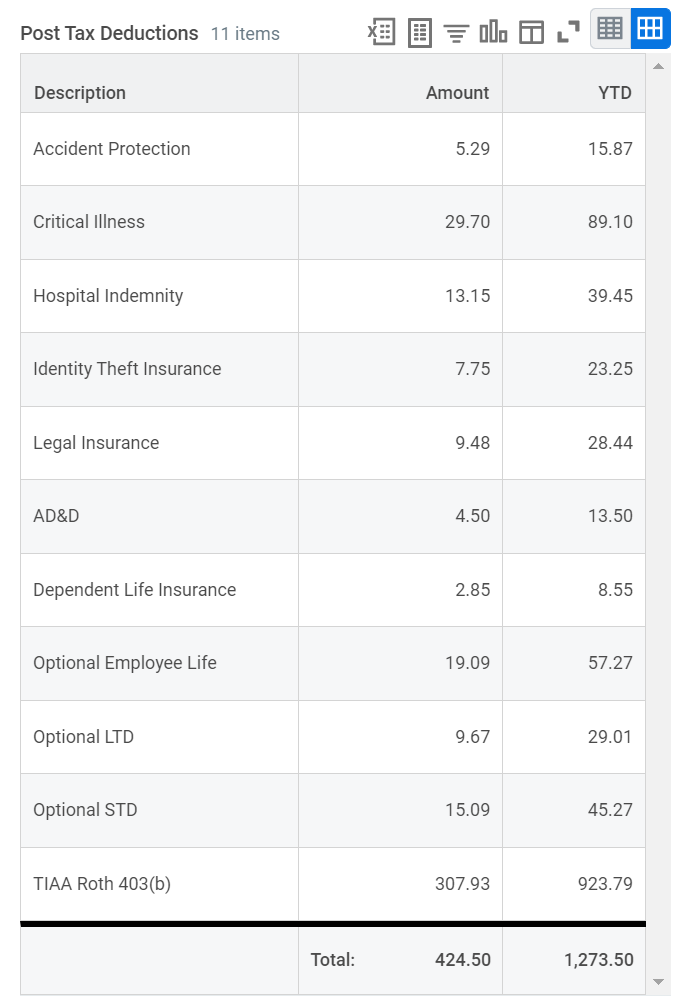
7. Post Tax Deductions
This section details your post tax deductions which may include any voluntary benefit or miscellaneous deduction you have elected.
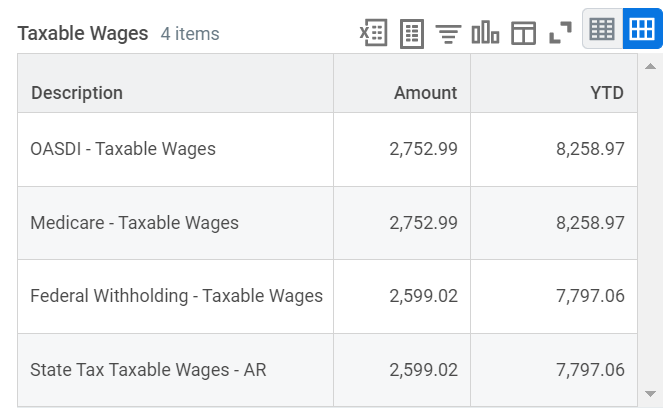
8. Taxable Wages
This displays how much of your wages were taxable for OASDI (Old Age Survivor Disability Insurance also known as Social Security), Medicare, Federal Withholding and State Tax . These amounts may be the same or may be different. Each tax has different qualifications and/or limits to determine if wages are taxable or not.
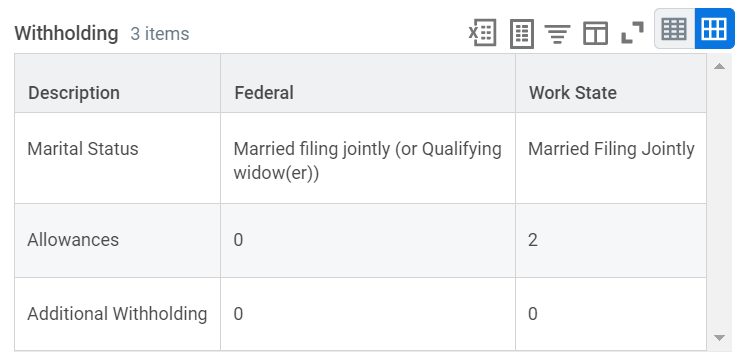
9. Withholding
This displays your Federal and Work State Tax Withholding at the time payroll was processed. You can update your Federal Tax Withholding Elections in Workday at any time. Updates will be applied to your paychecks going forward (Form W-4). Based on the timing of your update, the change may not reflect until the next pay period.
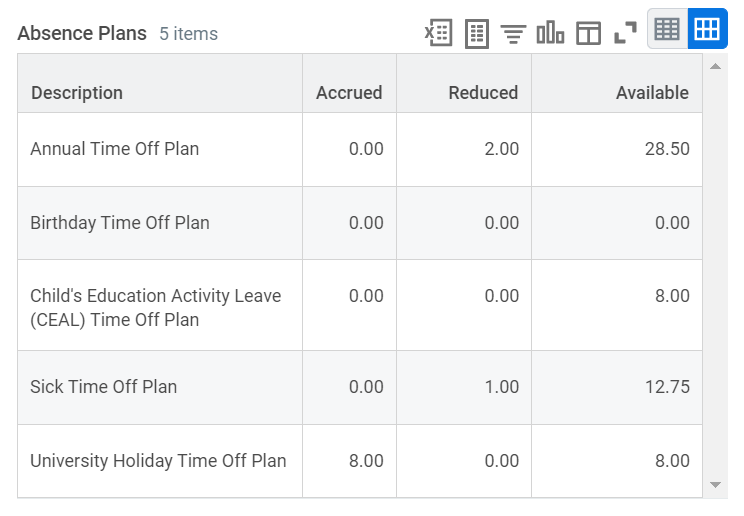
10. Absence Plans (Time Off)
This will display a static snapshot of available time off balance at the time payroll was processed and time off accrued and used during the pay period.
Time Off balances listed here include:
- Annual Time Off Plan
- Birthday Time Off Plan
- Child’s Education Activity Leave (CEAL) Time Off Plan
- Compensatory Time Off Plan
- Sick Time Off Plan
- University Holiday Time Off Plan
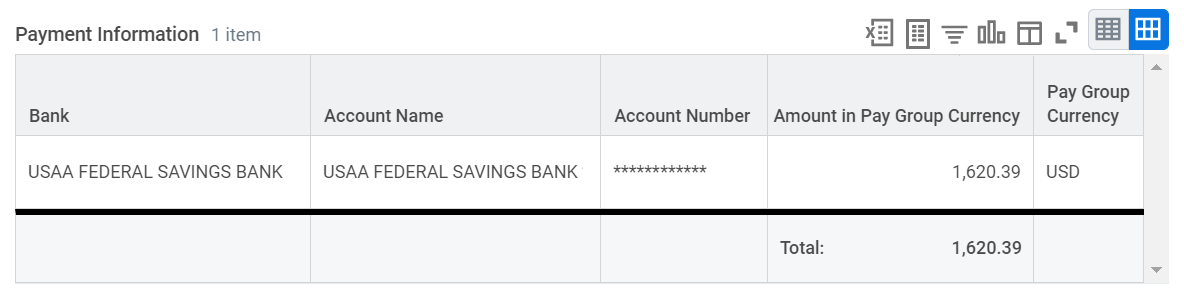
11. Payment Information
Payment information details the Net Pay amount and method (check or direct deposit) of the payment.
If you were paid via a paper check, the check will be mailed to your mailing address on the pay date.
If you currently receive a paper check, Payment Elections can be updated to Direct Deposit in Workday at any time.
You can also update existing payment elections and your mailing address via your Worker profile in Workday.
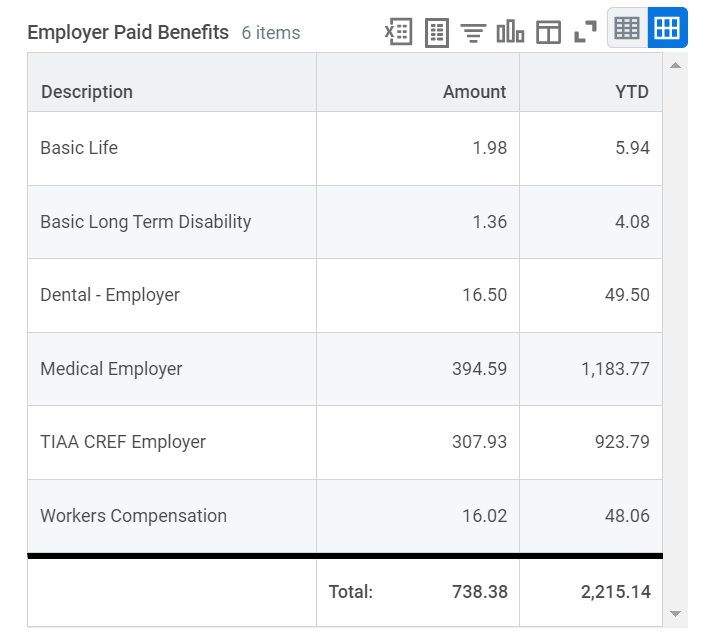
12. Employer Paid Benefits
These are benefits paid by the University of Arkansas.
13. More Information on Description/Pay Component
There are over 100 different kinds of earning types at the University of Arkansas, and based on date ranges, each type may have more than one line item in your Earnings section.
We recommend that if you have a long and/or complicated earning section, to sort the column headers in this section by either Description or Dates, depending on what order you want to review your earnings. You can do this by clicking on the column header and choosing ascending/descending order. If you are looking at the pdf/printed version, it should be sorted first by Pay Component, then by Dates.
We have outlined a few of the major types below:
- Allowances
- Hourly Pay
- Inclement Weather
- Overtime
- Regular Salary
- Time Off PTO (e.g. Annual Leave, Sick, Holiday, etc.)
- Shift Differential
14. More Information on Rate
Here is a resource tool that may assist in understanding the rate of pay listed on the payslip for each pay period for 12 month salaried workers.
Regular Earnings for Salaried Workers
The rate on the payslip displays the rate of pay for the earning types for the dates worked. The rate is determined according to your position and compensation details.
Note: Salaried workers rate of pay displays the current pay period rate of pay. The current pay period rate of pay is determined by the compensation amount divided by the number of working days/hours in the pay period.
| Annual Salary | $50,000 |
| Semimonthly Gross | $2,083.33 |
| Pay Period | 02/01-02/15/2023 |
| Number of Working Days | 11 (88 hours) |
| Hourly Rate for Pay Period | $2,088.33/88 hours = $23.67 |
Overtime Earnings
Overtime Rate is calculated based on the number of hours physically worked in a work week. The U of A work week is defined as Sunday through Saturday. Overtime at time and a half is calculated after 40 hours are worked in the work week.
Fact Sheet #22: Hours Worked Under the Fair Labor Standards Act (FLSA)
Overtime rate displays the rate of pay for the earning types for the dates worked. The rate is determined according to your position and compensation details.
Note: The overtime rate is calculated at your annual salary divided by the number of hours in a calendar year, 2080 hours.
| Annual Salary | $50,000 |
| Overtime rate at straight rate | $50,000/2080 = $24.04 |
| Overtime rate at time and half (1.5) | $50,000/2080 = $24.04 * 1.5 = $36.06 |
Hourly Worker Earnings
For hourly workers, the rate of pay is rate per hour worked.
Other Rates
Eligible workers may have other earning types such as Overtime, Shift Premiums and Time Off if these have been earned in the pay period. The rate for these will be based on factors such as regular rate of pay, number of hours eligible, and dates worked.
15. More Information on Retroactive Pay Calculations
Earning types from previous pay periods may also be listed. This occurs when your earnings for a previous period have been recalculated and result in a different amount due to a retroactive change that may or may not impact your pay. Retro adjustments may appear as negative (amounts paid in a previous pay period) and positive (new amount or correction to pay).
Salaried workers are paid current. The payroll will complete to be paid prior to the ending of the pay period. If a worker adjusts a time off (such as annual leave request) after the payroll completes for a date in the prior pay period, the regular salary pay component will be reduced (showing a negative dollar amount) by the amount of pay for the hours requested and then be added as a positive amount for the appropriate pay component such as Annual Leave PTO.
| Pay Period | 02/01-02/15/2023 |
| Payroll Complete | 02/13/2023 |
On 02/14/2023, worker enters 8 hours of annual leave for 02/14/2023 after payroll completion. On the 02/28/2023 payroll, worker will have a retroactive adjustment listed on the payslip reducing the "Regular Salary" pay component and adding the "Annual Leave PTO" pay component with a net result of $0.00 for the worker.
For additional assistance with interpreting your payslip, contact payroll@uark.edu.